Business Owners: Reviewing Your K-1
When your business return is ready, SafeSend walks you through reviewing and signing it, then lets you send each partner or shareholder their K-1 right from the portal. Here’s how it works, step by step.
- Open the email and click Get Started. We’ll email you when your return is ready. Click the link, then enter the one-time access code that SafeSend sends to your email and click Confirm.
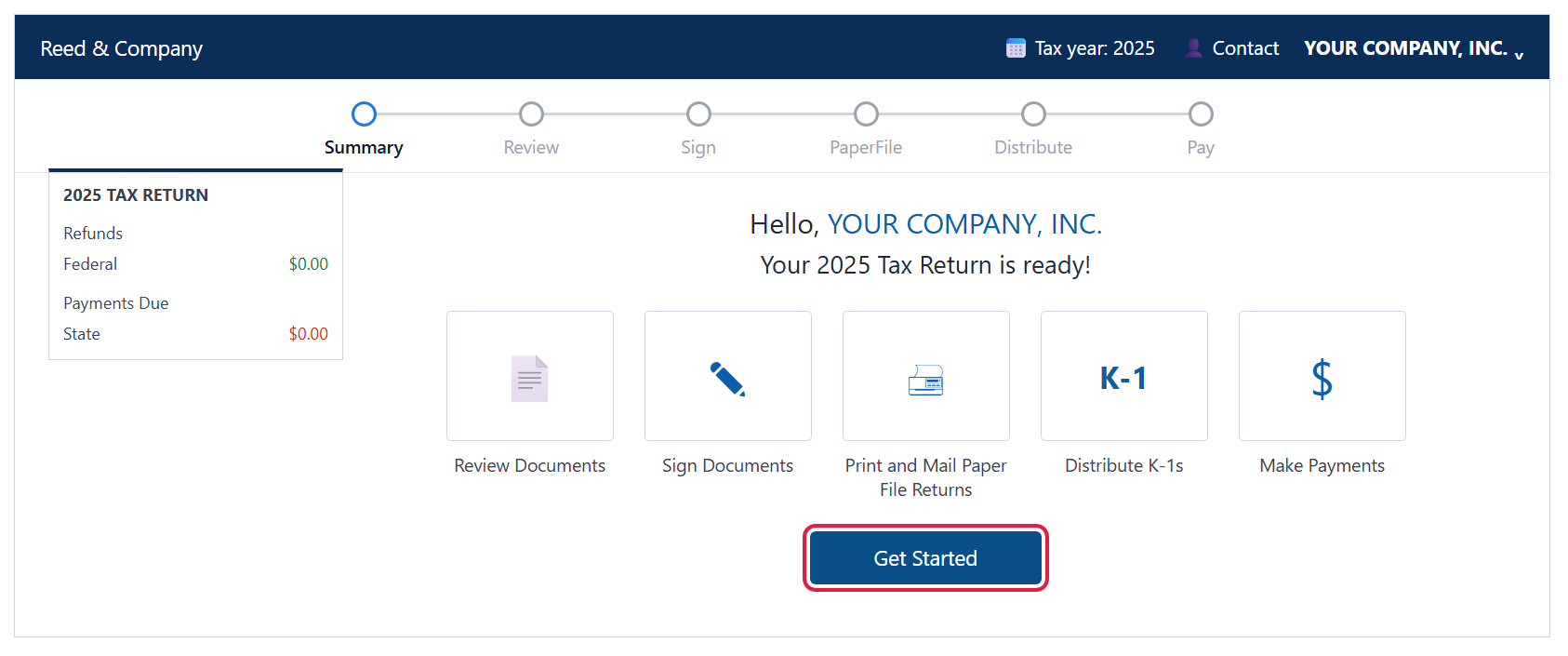
- Look over the summary, then click Get Started. The landing page shows any refunds or payments due on the left and the tasks ahead of you: review, sign, paper file, distribute K-1s and make payments.
- Review your documents and click Next. Read through the transmittal letter, tax returns and any attachments. Use the menu on the left to jump between sections, or Download / Forward a copy if you’d like.
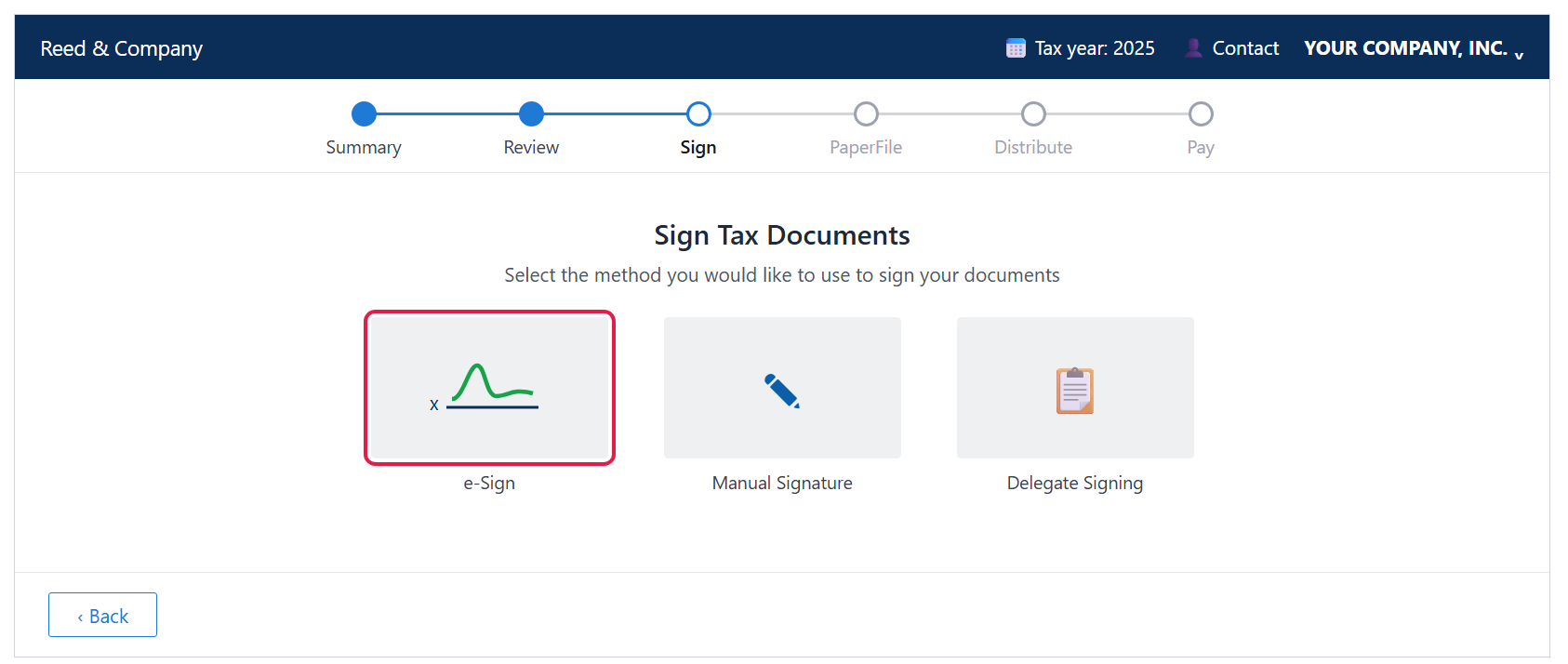
- Choose how to sign — usually e-Sign. Depending on our settings you may also see Manual Signature or Delegate Signing. For e-Sign, click each highlighted signature field, adopt your signature, and click Next when every field is complete.
- Handle any paper-file returns. If some returns have to be mailed, you’ll be asked to consent that you’ll print, sign and mail them. Click I Consent to see and download them, or Skip to come back later.
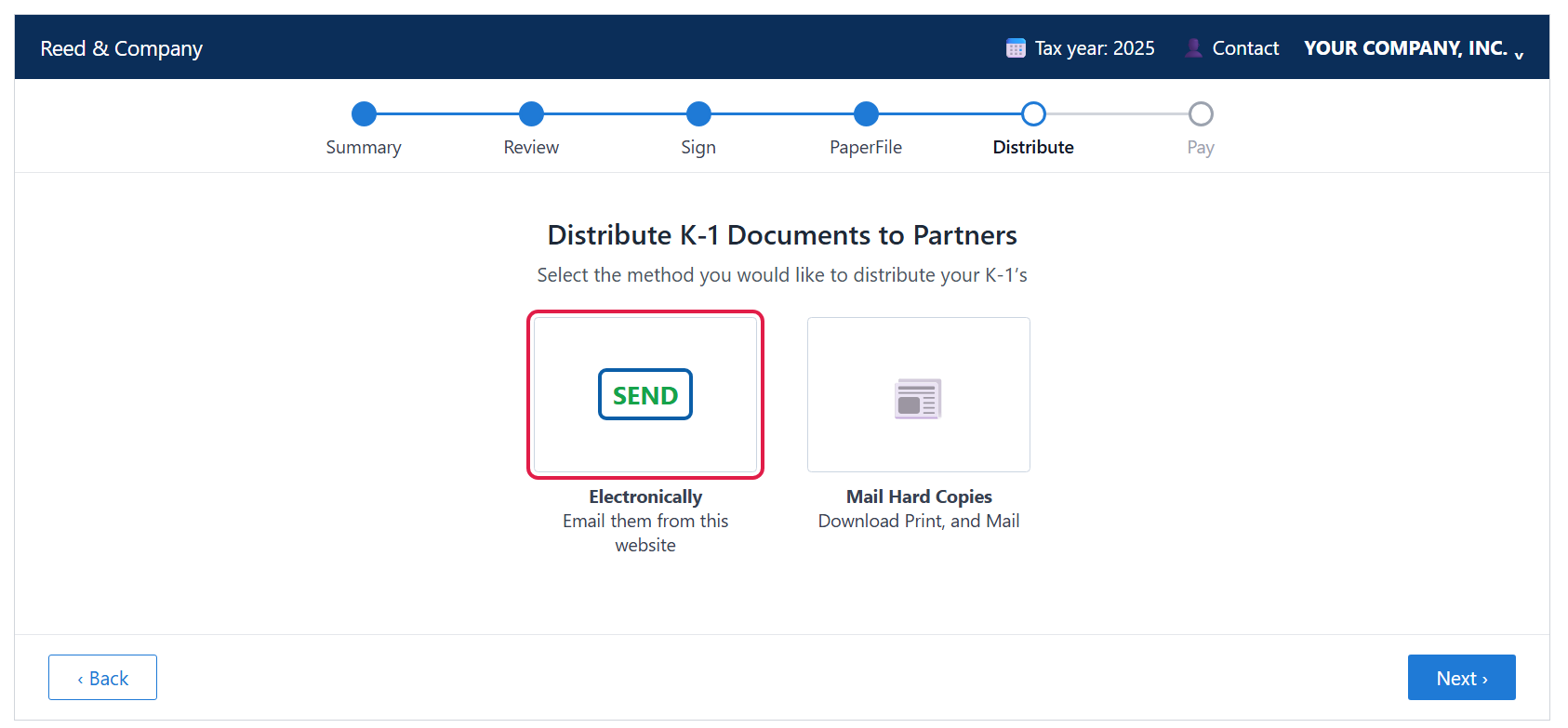
- On the Distribute step, pick Electronically. This emails each partner their K-1 securely from the portal. Choose Mail Hard Copies instead if you’d rather download, print and mail them yourself.
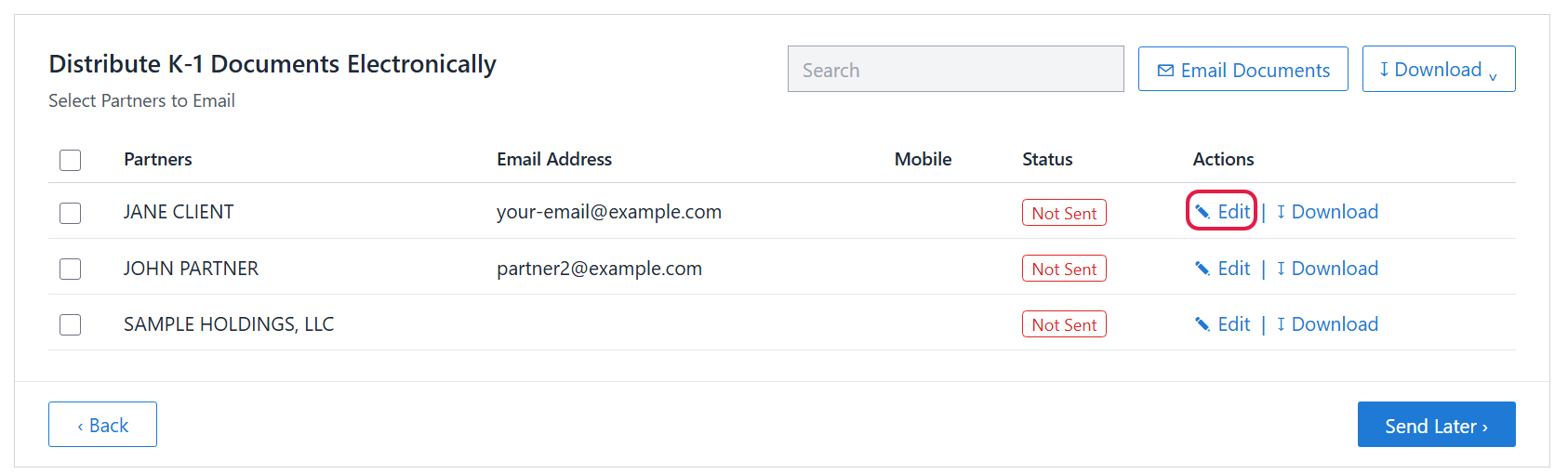
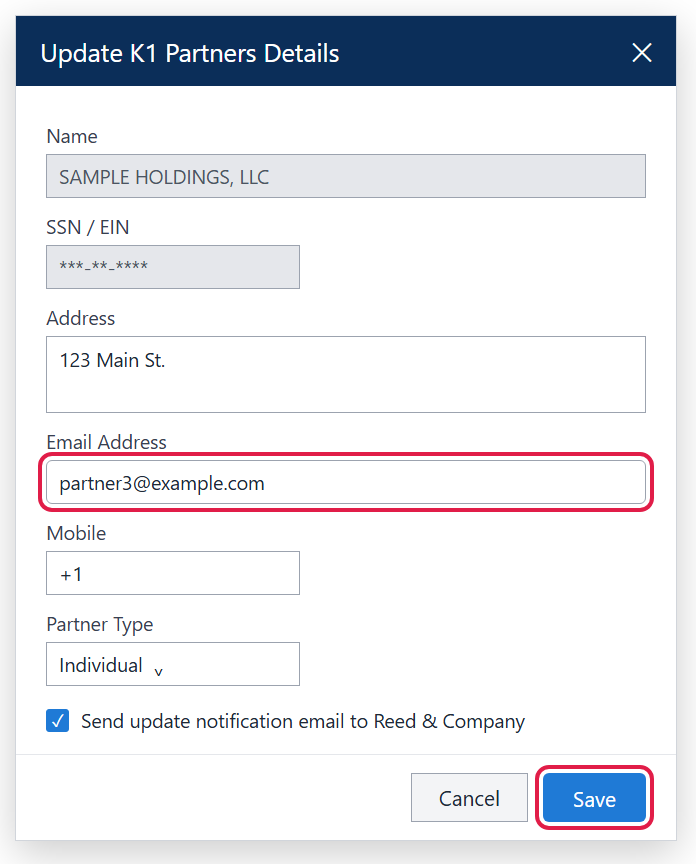
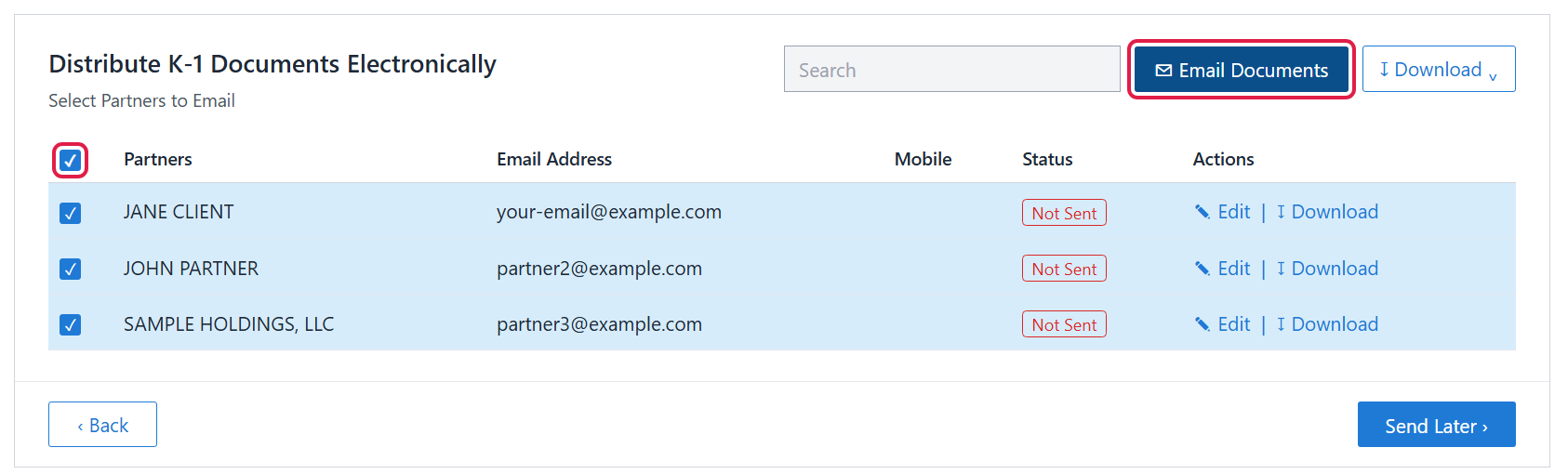
- Check each partner’s email address and click Edit to fix anything. Every partner is listed with a Not Sent status. Click Edit next to anyone whose email is missing or wrong.
 In the Update K1 Partners Details window, enter the email address (and address or mobile if needed), then click Save. Leave the notification box checked so we’re told about the change, or uncheck it if you don’t want us notified.
- Select the partners and click Email Documents. Tick the box at the top of the list to select everyone (or tick individual partners), then click Email Documents. You’ll see “Email has been successfully sent” and each status changes to Sent on with the date and time. Click Next to move on to any payments.
Good to know
- Not ready to send K-1s yet? Click Send Later — you can come back to the Distribute step any time.
- Come back and check the Status column whenever you like to see which K-1s have gone out. Use Resend if a partner can’t find their email.
- Need a copy for yourself? Use Download next to a partner, or the Download button at the top for several at once, then click the download arrow in My Downloads.
- Still stuck? Call us at (765) 742-4141 and we’ll walk you through it.