Uploading Your Tax Documents
When we’re ready for your tax information, SafeSend emails you a secure link to send us your documents. Here’s how to sign in, upload everything we’ve asked for, and let us know you’re done.
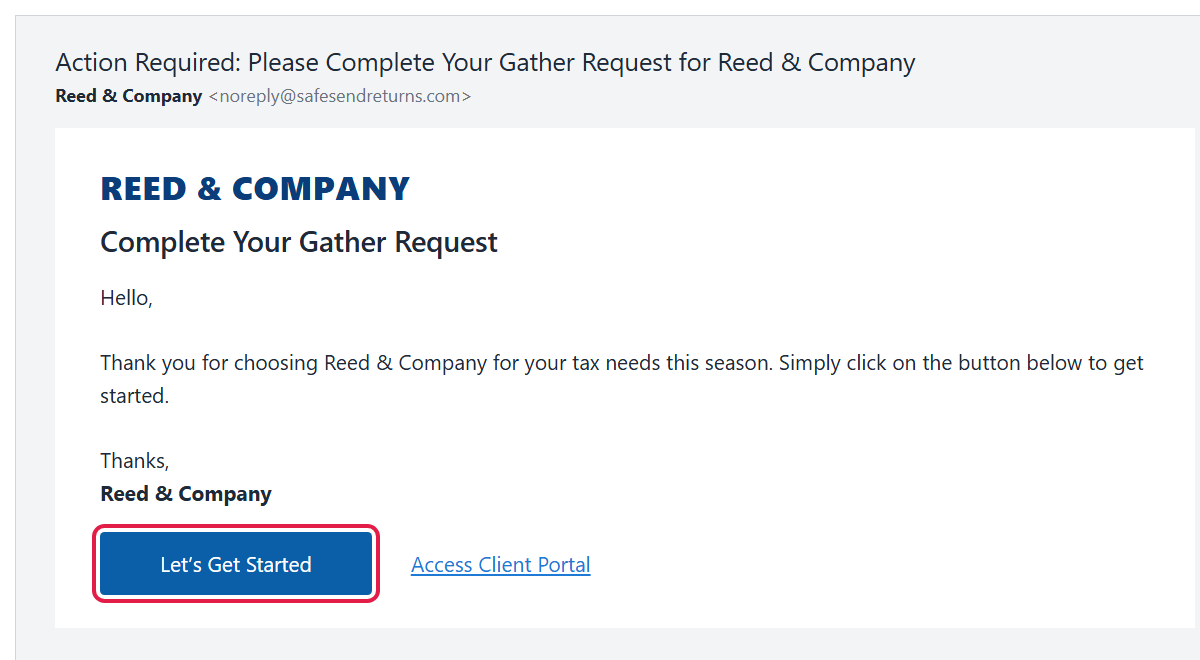
- Open the email and click Let’s Get Started. The email comes from noreply@safesendreturns.com with a subject that begins “Action Required.”
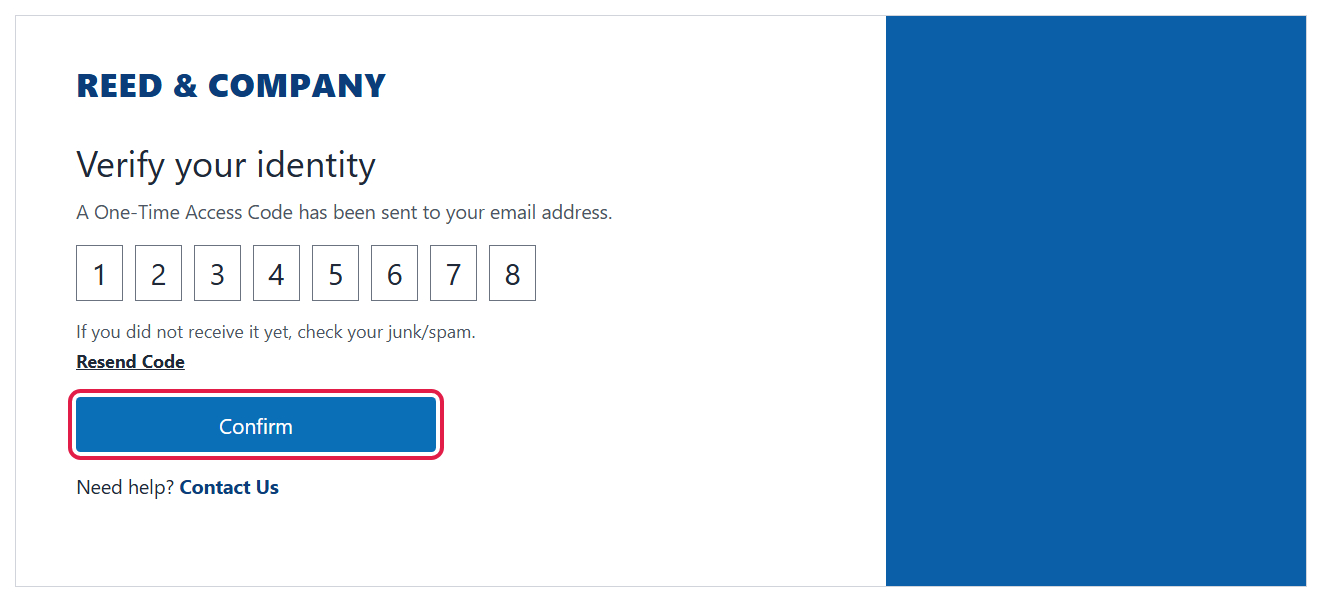
- Click Send Code, then enter the code and click Confirm. SafeSend sends a one-time access code to your email (or phone, depending on how your account is set up); type or paste it into the boxes.
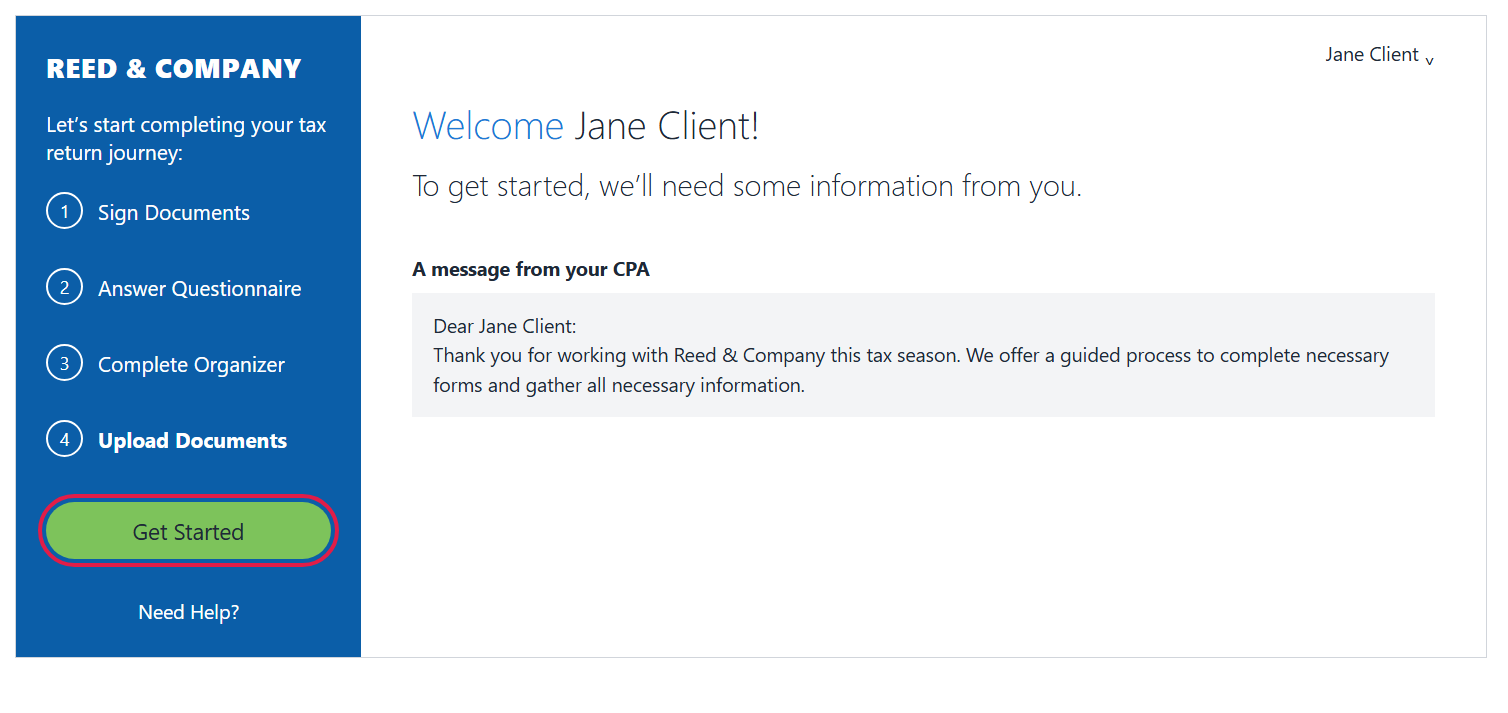
- Click Get Started. The left panel lists every step in your request — for example Sign Documents, Answer Questionnaire, Complete Organizer and Upload Documents. You may see only some of these.
- Work through the earlier steps. Sign any documents, answer the questionnaire and fill in the organizer, clicking Next to move on. A progress bar across the top shows where you are.
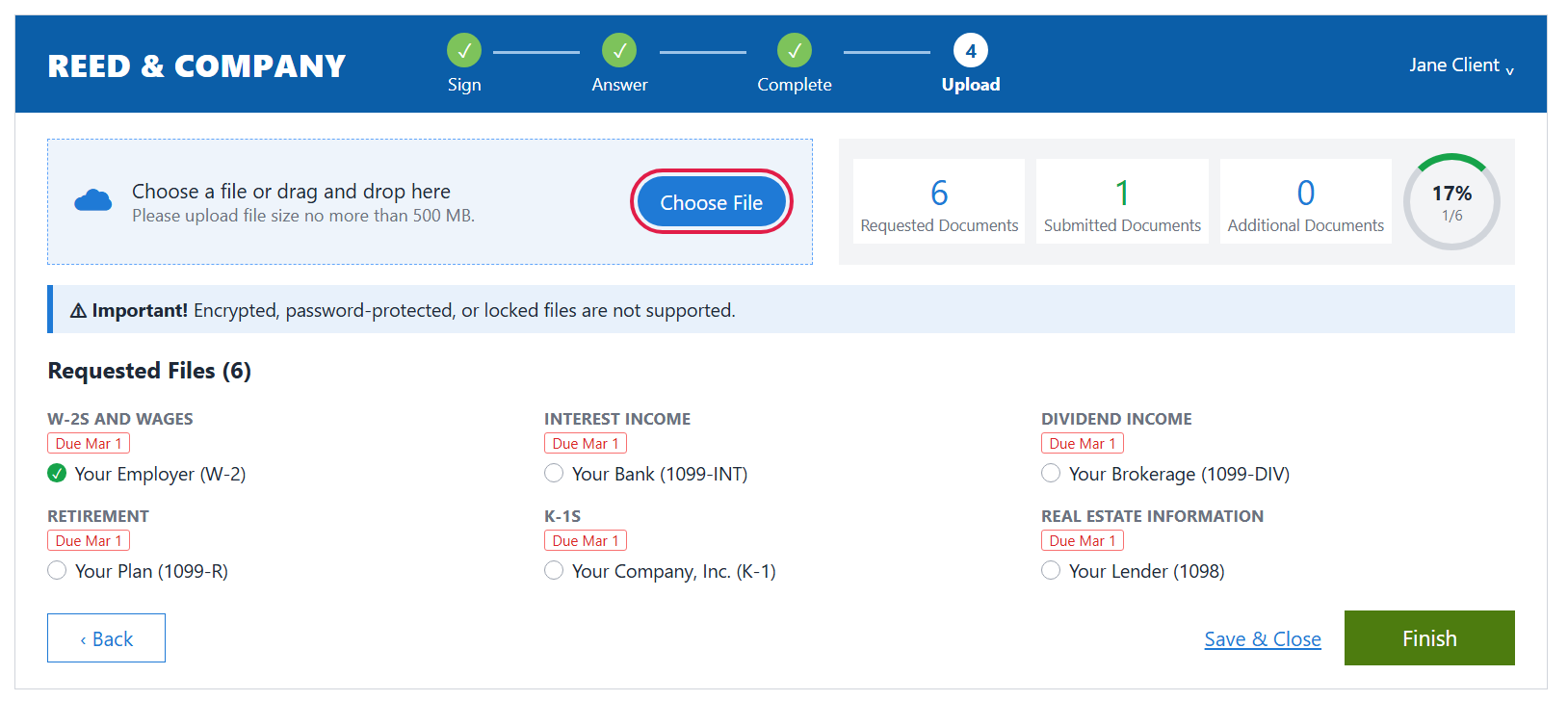
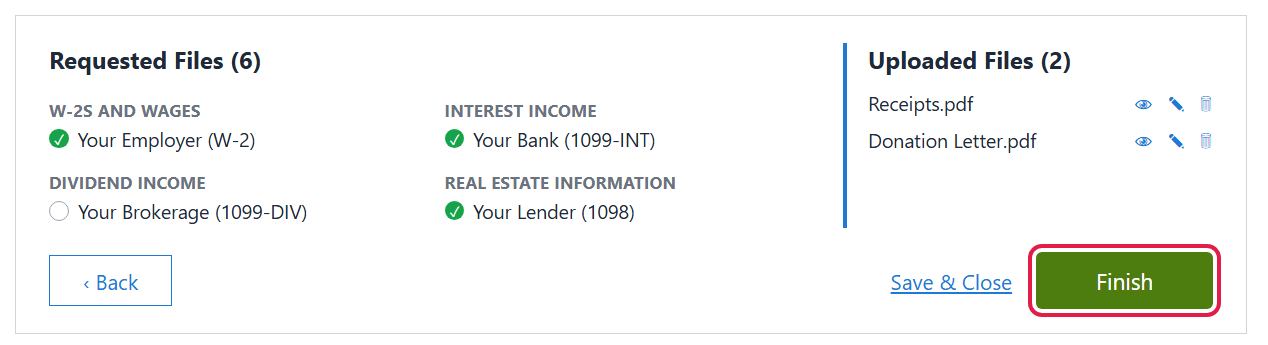
- On the Upload step, click Choose File (or drag your files onto the box). The Requested Files list shows what we’re looking for, and the counters on the right track your progress.
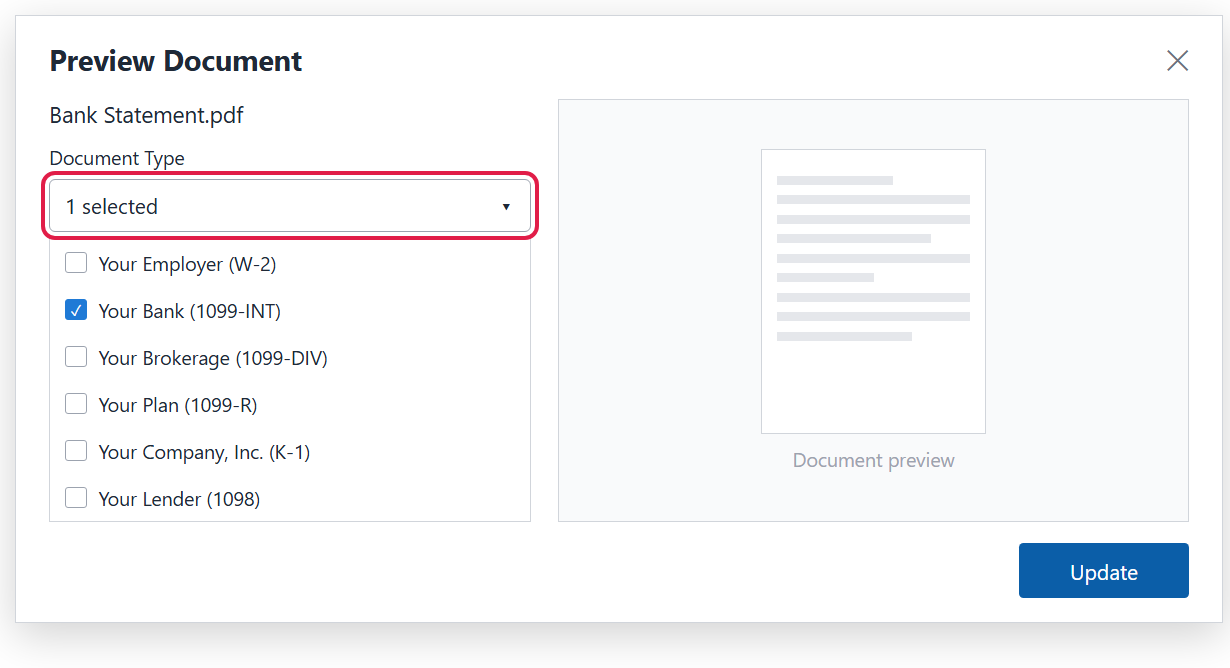
- Check that each file is matched to the right item. SafeSend tries to recognize your documents automatically, which can take a few minutes. To match one yourself, click the pencil (Edit) next to it under Uploaded Files, pick the item from the Document Type drop-down and click Update. You can also drag a file onto the matching item.
- Click Finish when everything is uploaded. A green check appears next to each requested item you’ve covered. You’ll then see a message that all tasks are complete.
Good to know
- Files can be up to 500 MB each. Encrypted, password-protected or locked files can’t be uploaded — remove the password first.
- The access code expires after 20 minutes. If it doesn’t arrive, check your junk/spam folder or click Resend Code.
- Not finished? Click Save & Close and come back later using the same email link — your uploads will still be there.
- Once you’re done, you can return to the request at any time to view or download what you submitted.
- Still stuck? Call us at (765) 742-4141 and we’ll walk you through it.