Sending Files to Your Preparer
Need to get a document to your staff member outside of a normal document request? You can send files to anyone at Reed & Company directly from your Client Portal.
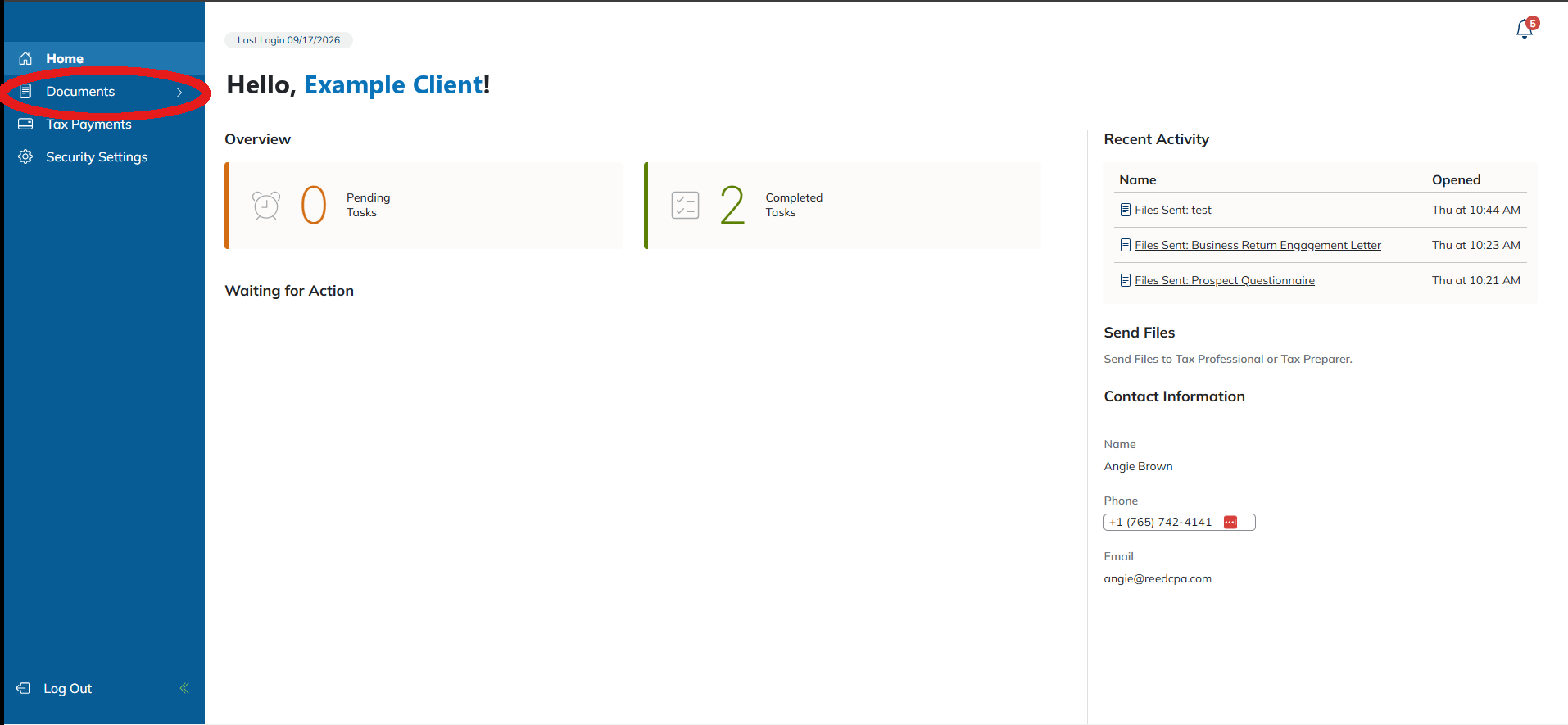
- From your Client Portal home, click Documents in the left-hand menu.
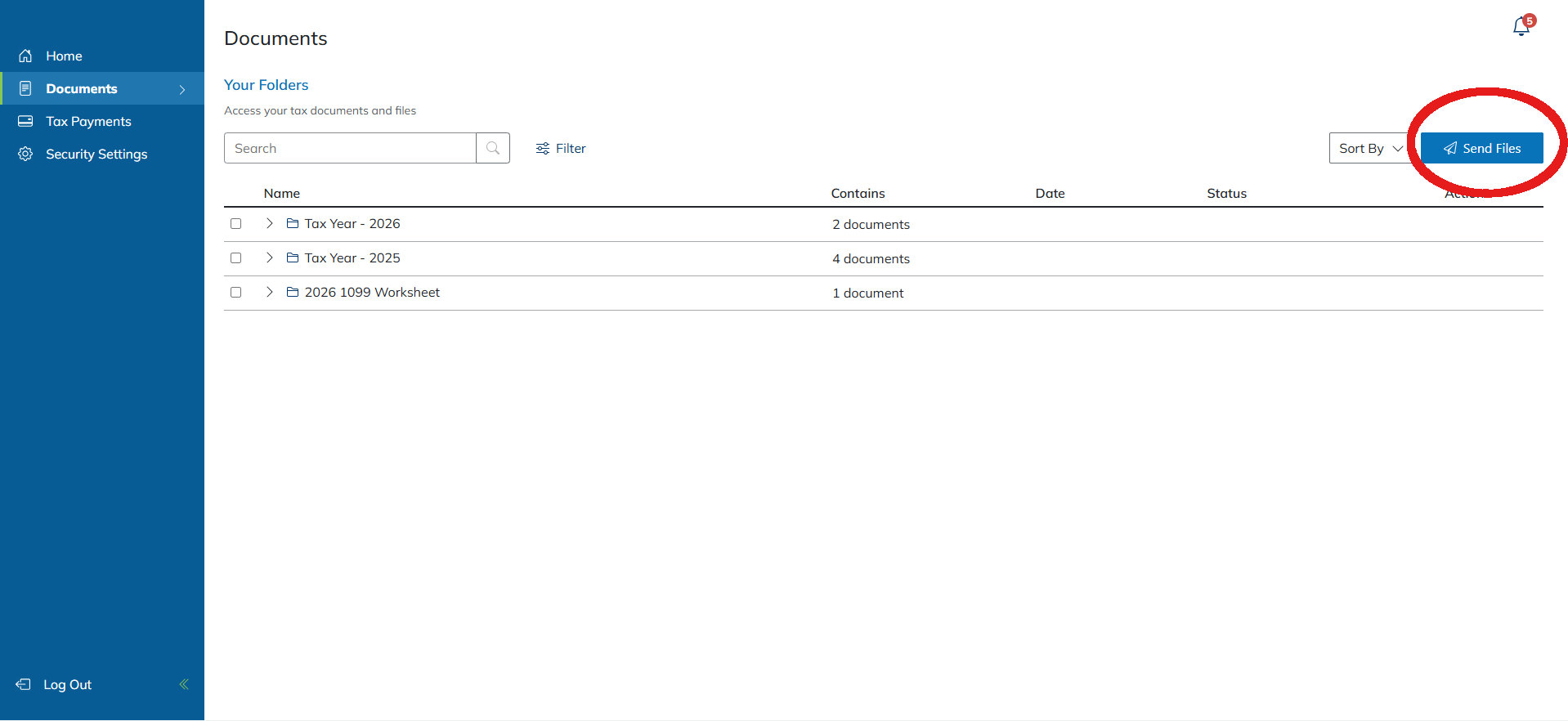
- Click Send Files in the top right of the Documents page.
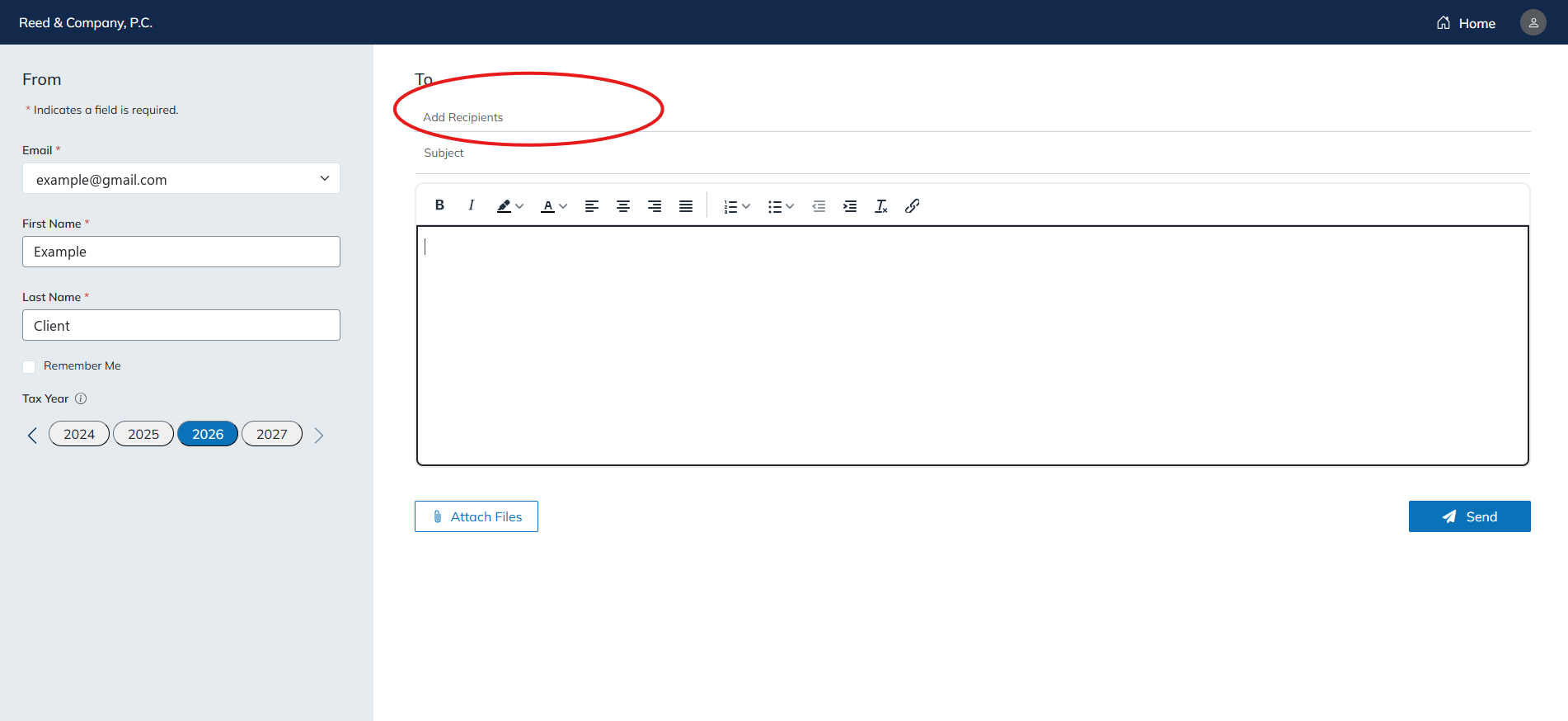
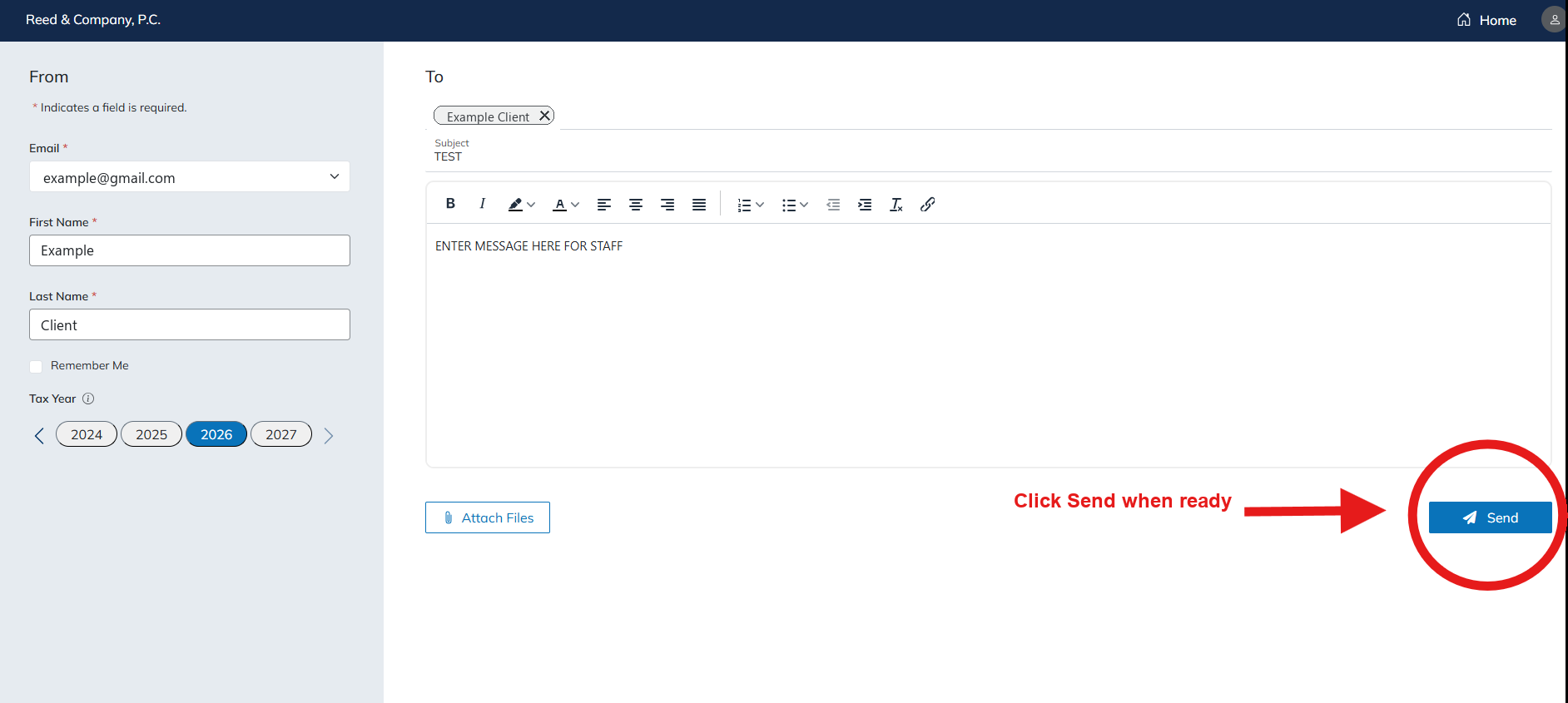
- Add a recipient. Click into the To field and choose the staff member you’re sending files to.
- Fill in the details. Add a subject and a short message, confirm the tax year, and click Attach Files to choose the documents you want to send.
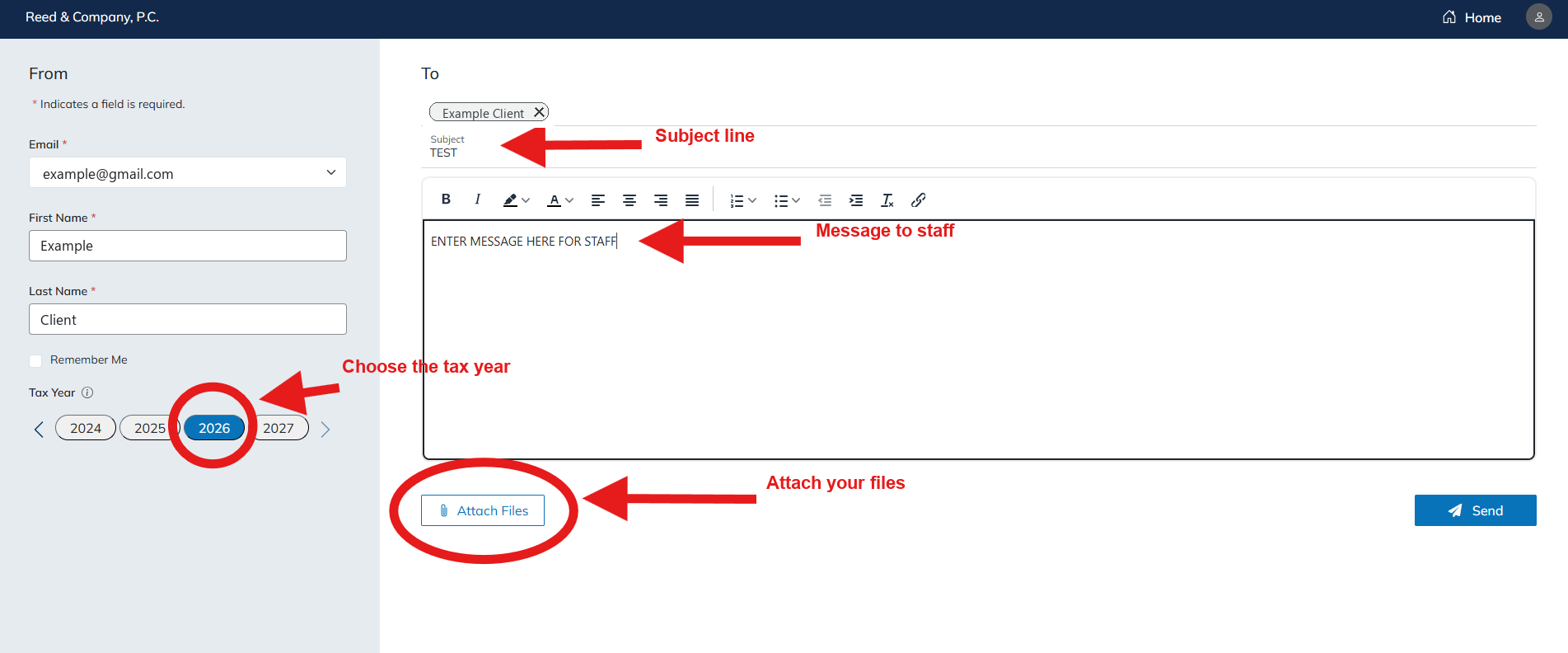
- Click Send when you’re ready. Your staff member is notified right away.
Prefer to send files as part of a document request we’ve already sent you? Use the Uploading Your Tax Documents guide instead.